 Newspatrolling.com News cum Content Syndication Portal Online
One of the best options to transfer data from Android to iPhone is to use Apple’s ‘Move to iOS’ App
Globally, Android is a clear winner with a market share of around 68% to 72%. In comparison, iPhone’s (iOS) global market share is estimated to be around 27% to 32%. However, when it comes to switching sides, iPhone has a higher loyalty than Android. It is estimated that around 13% to 15% Android users migrate to iPhone every year.
This can be due to various reasons such as social ecosystem pressures for the young generation (Gen Z and Millennials) and higher disposable incomes. With so many users making the switch, the question often asked is how to transfer data from Android to iPhone. Let’s find the right answers to this query.
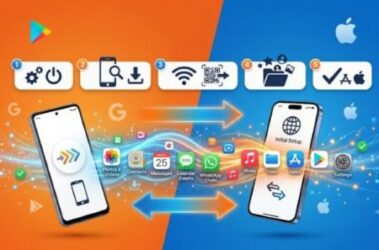 How to transfer data from Android to iPhone
Best overall method – Using Apple’s ‘Move to iOS’ app
This method is especially recommended for new iPhones. The ‘Move to iOS’ app is the official app to transfer data from Android to iPhone. It is a free app and the most comprehensive and mostly free from bugs or crashes. ‘Move to iOS’ app has the ability to transfer most of the data during the initial iPhone setup.
With Apple’s ‘Move to iOS’ app, users can transfer a wide range of data from Android to iPhone. It covers data like contacts, text messages (SMS), bookmarks, email accounts, camera photos and videos, calendars, free apps, WhatsApp chats and media and wallpapers.
To use the ‘Move to iOS’ app, users will need to have Android 4.0 or above OS and the iPhone with the latest iOS. Both devices need to be charged and connected to a power source. Users also need to ensure a stable Wi-Fi connection.
Step by step instructions for how to transfer data from Android to iPhone
During iPhone setup, you will find the ‘Apps & Data’ screen. When this is displayed, you need to choose ‘Move Data from Android’ > ‘Transfer with App. On your Android device, you need to download and install the ‘Move to iOS’ app from Google Play Store.
Next, you need to take the iPhone and tap ‘Continue’ to generate a 6 or 10 digit code. You need to enter this code in the ‘Move to iOS’ app installed on your Android device. You will be given an option to select all the data you want to transfer. Once done, the transfer will start automatically. Depending on the data size, it can take anywhere between 10 minutes to 60 minutes to complete the data transfer from Android to iPhone.
It is important to note that this data transfer occurs over a temporary Wi-Fi network. So, make sure that the Wi-Fi is stable and is not disconnected. WhatsApp transfer is now better supported directly through the app.
Manual ways to transfer data from Android to iPhone
This option is recommended if you are transferring data from an Android device to an iPhone that has already been setup and is in use. Here are some ways to transfer critical data items.
- Contact – Sync Android contacts to Google Account → On iPhone, go to Settings > Contacts > Accounts > Add Account > Google and sync
- Photos and videos – Install Google Photos on iPhone and sign in to access your photos and video. You can also connect both phones to a computer and copy via a USB connection
- Music and files – This can be done via Google Drive, OneDrive and Dropbox. Music files can be downloaded from cloud or using a computer transfer
- Text messages (SMS) – Use the ‘Move to iOS’ app
- Apps and app data – You need to re-download the apps from App Store. Many cloud-based apps such as Gmail, WhatsApp and others will sync automatically when you login
Tips for best results
Irrespective of the method you use to transfer data from Android to iPhone, make sure you back up the data. Because there is always a risk of bugs or unforeseen situations. Make sure both devices are charged and connected to a power source. Large files can take longer to transfer, so it is important to be ready for such situations. Before transferring, make sure both devices are updated to their latest versions.