 Newspatrolling.com News cum Content Syndication Portal Online
If you lose your iPhone, it is necessary to take steps to protect your data and improve recovery chances
Globally, iPhones are among the most stolen smartphones. iPhones are targeted since they have a high resale value. Parts of the iPhone such as OLED screens, camera modules and chassis can be sold at high prices. iPhones are easy to identify, making them the preferred target for criminals. Apart from theft, you may also lose your iPhone accidentally at any place. Let’s check out the options in such scenarios.
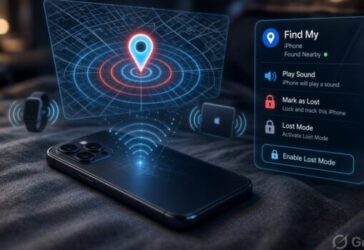
How to find lost iPhone
You will have a higher chance to find lost iPhone if some settings are already enabled on the iPhone. For example, the ‘Find My iPhone’ setting should be turned on in your device. Your iPhone should also have the ‘Find My Network’ turned on. This allows your device to communicate with nearby Apple devices even if offline/powered off and share location information.
Another setting that must be turned on is the ‘Send Last Location’. This sends the last location when the battery reaches its lowest level. If these settings were active before you lost the phone, it will become relatively easier to find lost iPhone. On iPhone 11 and newer versions, “iPhone Findable After Power Off” is displayed if active when shutting down the device.
Steps to take when you realize you lost your iPhone
Not being able to find your iPhone can be a difficult situation. However, you need to act calmly and avoid panicking. If you are at home, just search around the area to see if you have just misplaced the iPhone. You can call your number from another phone to see what happens. If you still cannot locate your iPhone, here are some options you can use to find lost iPhone.
- Use iCloud.com – You need to visit icloud.com/find in a browser. After login, you can select your device to see its current or last known location on a map.
- Use another Apple device – You can use another iPhone, iPad, Mac, or Apple Watch that is signed in using the same Apple Account. Or, you can use a Family Sharing member’s device. You can then select the lost iPhone to see its current status.
- Apple Watch Shortcut – You have to open Control Center on your Apple Watch and tap the Ping iPhone button. This method will work if your iPhone is nearby. On newer watches (Series 9/Ultra 2+), you may also get directions.
Options under Find My
After you log in to your Apple Account and access the Find My section, you have various options. For example, you can play sound to see if your lost iPhone is nearby. Another option is ‘Mark as Lost’. This locks the device and suspends Apple Pay/cards/passes. You should do this immediately if you are sure that you have lost your iPhone and not misplaced it.
You can also get directions to the location of your lost iPhone. In certain cases, you may realize that recovery won’t be possible. In such situations, you can choose the ‘Erase This Device’ option. This will erase all the data on the device.
Additional steps to consider
If you lose your iPhone, you can contact your telecom company and ask them to suspend or cancel SIM/eSIM service to prevent calls, texts, or OTP fraud. As soon as you realize that you have lost your iPhone, you can change your Apple Account password and any important accounts like email, banking and social.
This step is necessary if you suspect a theft. You can also enable Stolen Device Protection to secure your device with biometric info. If you are quite sure that your iPhone is stolen, you need to report the matter to the police. Provide all the details such as serial number/IMEI. These will be available in your Apple Account. You can also file for insurance claims if you have a cover for theft and loss of device.
Also read : How To Transfer Data From Android To iPhone